Content must be presented in ways that can be perceived through sight, hearing, or touch, making it accessible to users with different sensory abilities.
Accessibility
Making sure your site is equally accessible to everyone
What is Accessibility?
Website accessibility means making your website usable and equally accessible for people with various disabilities. The Web Content Accessibility Guidelines (WCAG) 2.2 are organized around four principles (POUR):
Perceivable
Operable
All forms, controls, and navigation must be usable by people with disabilities, allowing them to interact with the website effectively.
Understandable
The interface should be easy to comprehend, with clear instructions and consistent design to prevent user confusion.
Robust
Content must be compatible with various technologies, including assistive devices like screen readers, ensuring it works across current and future tools.
Why is Accessibility Important?
According to the CDC, more than 70 million U.S. adults (over 1 in 4) live with a disability. Under the Americans with Disabilities Act (ADA), state and local governments, along with businesses open to the public, are legally required to make their websites accessible. Each year, thousands of accessibility-related lawsuits are filed against organizations that fail to comply.
Accessibility is better for your users, and better for you.
This training focuses on content-related accessibility issues (text, copy, media, etc). These fall into three main areas:
Headings
This is for SEO and also for users to visualize your content better.
Hyperlinks
Making sure devices can read links correctly, and the text describes the destination correctly.
Media
Adding alt text to images that is concise, and not redundant.
Headings
Headings are used to organize content on a page. They function as titles and headlines and are visually distinct from “normal” paragraph text (different font, larger size, etc). But they’re not just for looks – assistive technology and search engines view headings as more important than paragraph text, so getting them right is important for both your accessibility and your SEO.
Guidelines for Headings
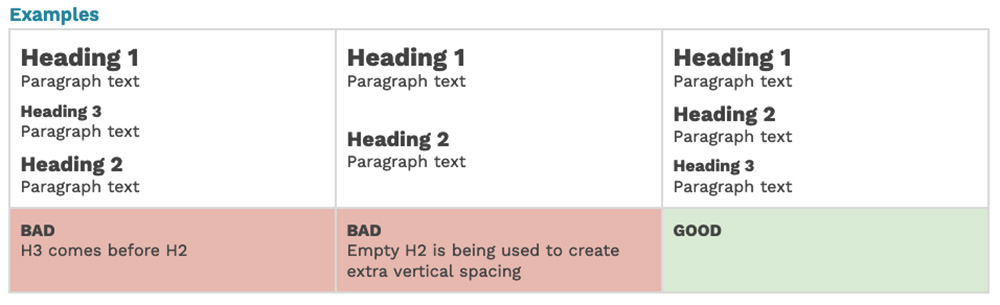
- One H1 per page: describes the page’s main topic.
- Use headings in order:
- H2: main sections or broad ideas
- H3: sub-sections or specific points
- Do not skip levels or choose a heading for style alone.
- Emphasis: Use bold or italic for visual emphasis instead of headings.
- Avoid empty headings: Extra returns can accidentally create blank headings—double-check spacing between sections.
Hyperlinks
Hyperlinks are all links on your website. Links are often found within text fields, but this also includes buttons, the main menu, and any other component that contains a hyperlink.
Guidelines for Hyperlinks
- Always include link text: Even images need descriptive text alongside them.
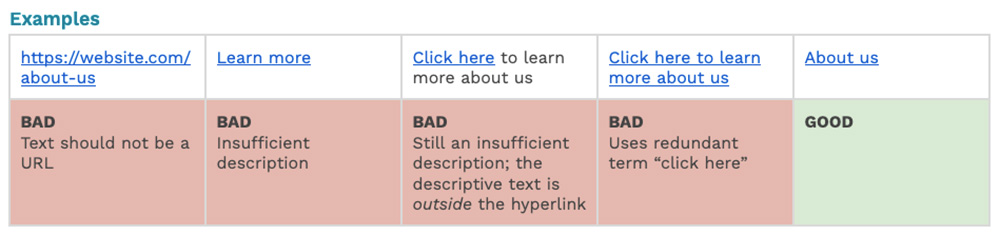
- Be descriptive: Link text should clearly indicate the destination. Avoid vague labels like “learn more.”
- Avoid redundant words: Don’t use “click here” or “link to.”
- Use readable text, not URLs: Example: “About Us” instead of the full URL.
- Check links work: Ensure all internal, external, and anchor links are functional.
- Avoid duplicate links: Don’t repeat links to the same destination unnecessarily.
- Underline only links: Use bold or italics for emphasis on non-link text.
Media
Media encompasses any images, videos, or files you upload or embed on your site. Depending on the media type, there are different rules to follow:
Image Alternative Text
Alternative text (or “alt text”) describes an image for users with visual disabilities as well as search engines, and will display in place of the image if the file fails to load.
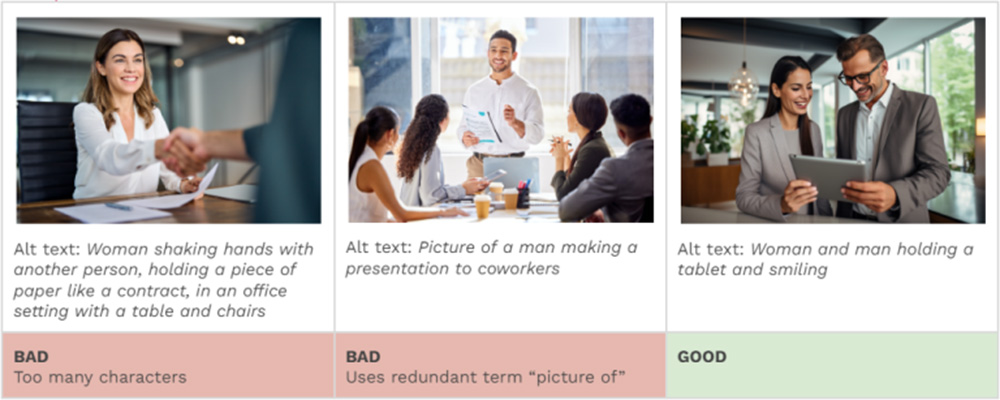
- Alt text should be succinct – less than 100 characters.
- Don’t use redundant words like “image of”, “picture of”, “photo of” etc.
- All images on the same page should have unique alt text. Don’t reuse identical alt text across multiple images.
Images Of Text
Avoid Using Images for Readable Text
- Old practice: Text was once added as images to control styling.
- Now: Use your site’s text modules—text in the browser:
- Resizes clearly (better responsive across different screen sizes)
- Works with assistive devices
- Improves accessibility, mobile usability, and SEO
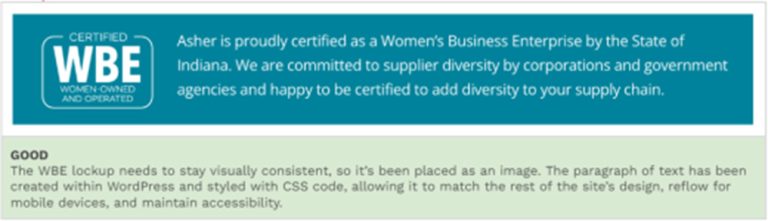
- Exceptions: Logos, wordmarks, infographics, or cases needing precise visual design.
- Ensure alt text matches the image text closely.
- Note: Automated testing can’t detect images of text, so following this practice is crucial.
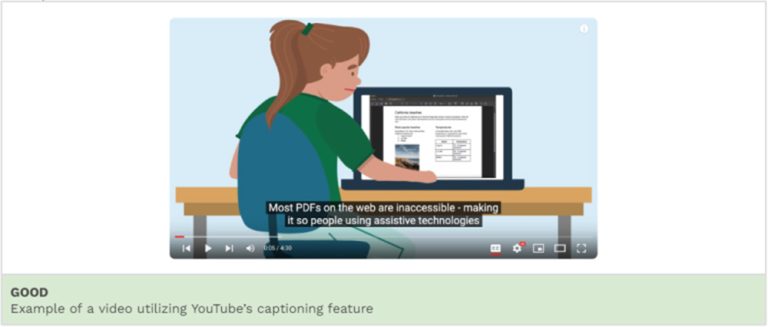
Audio / Video
Any media with audio needs to have captions and/or a transcript to be accessible for users with auditory disabilities. This includes audio-only media (like a podcast) as well as videos that have an audio track.
Files
- Standards apply to all downloadable files: PDFs, Word, Excel, PowerPoint, etc.
- Whenever possible, use native site content instead of downloadable files:
- Better accessibility
- No extra processing costs
- Smooth mobile experience
- Search-engine friendly
- When files are necessary:
- Run them through an accessibility process (convert to PDF + add proper markup).
- Re-process whenever content is updated, which can add ongoing costs.
- Downloads interrupt user experience, especially on mobile.
- Summary: Native site content is easier, more accessible, and better for UX and SEO.